Мониторинг счета
Профессиональный контроль вашей торговли на сайте и в Telegram боте
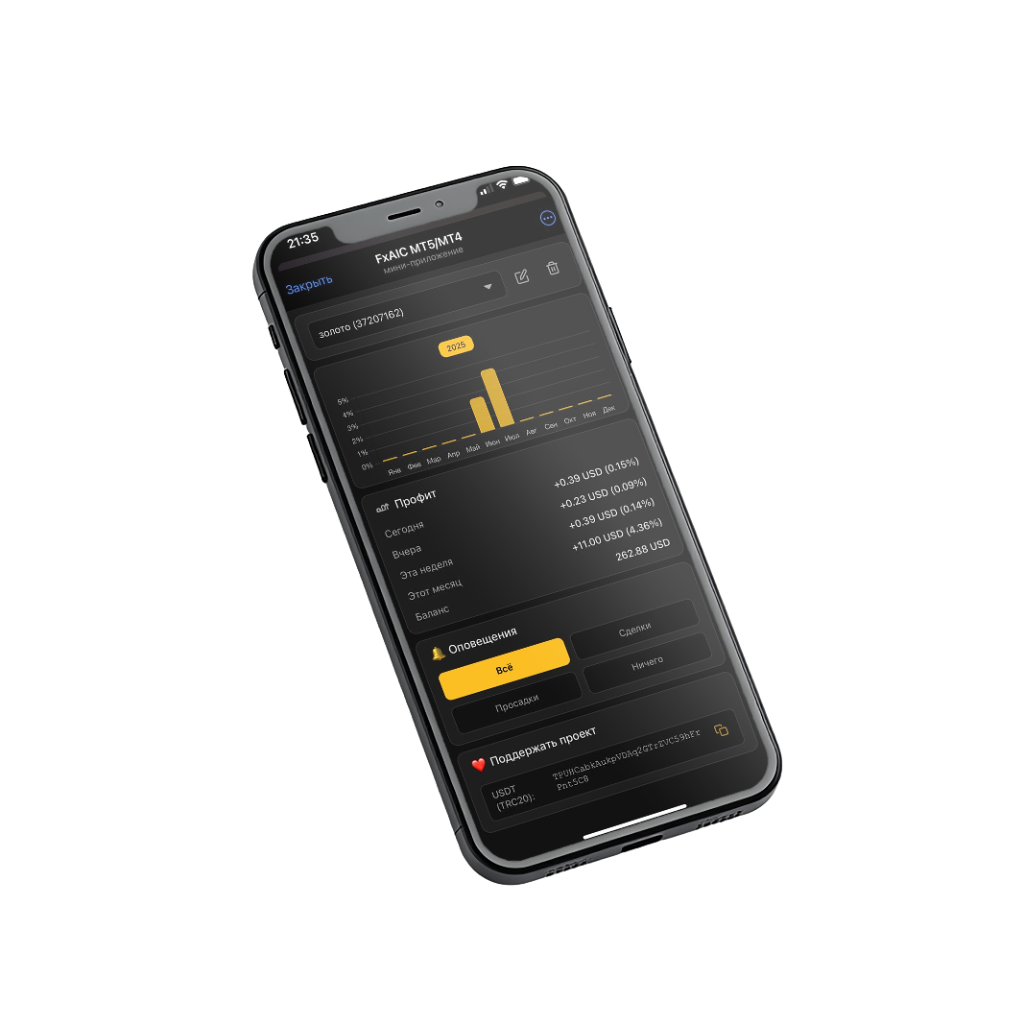
🌐 Универсальная система мониторинга
Единый профиль
Ваша статистика и настройки полностью синхронизированы между Telegram-ботом и этим сайтом. Управляйте счетами там, где вам удобно.
Один ключ доступа
Используйте единый API Key для подключения всех ваших терминалов. Вам не нужно создавать отдельные ключи для каждого счета. Этот же API Key вставляется в мобильное приложение для привязки аккаунта.
Войдите по e-mail или создайте аккаунт. После регистрации API-ключ появится в личном кабинете, и его можно будет вставить в бота и мобильное приложение.
Monitoring FAQ
Short answers about terminal setup, API key, charts, filters, and public links. Based on the Monitoring presentation.
What does FX 0.007297 Monitoring do?
The platform collects trading statistics from MetaTrader accounts and shows them in one interface.
- Connect multiple MT4 and MT5 accounts.
- Track profit, balance, and drawdown in real time.
- Analyze symbols, strategies, and periods.
- Use full deal history, public links, and sharing tools.
How do I connect an account to monitoring?
Connection is done through the EA and a single API key.
- Open “+ Connect Terminal”.
- Copy your API Key.
- Download the EA for MT4 or MT5.
- Run the EA and paste the same key into inputs.
Where should I install the EA and what must be enabled?
For correct operation you need the right Experts folder and the required terminal permissions.
- MT4: MQL4/Experts.
- MT5: MQL5/Experts.
- Enable “Allow DLL imports” on the “Common” tab.
- Paste your API Key on the “Inputs” tab.
What appears on the dashboard after connection?
The dashboard shows cards for all connected accounts.
- Account status: online, offline, or market closed.
- Account number, with an option to hide it for privacy.
- Current balance, net profit in $, and total profitability in %.
- Actions: open stats, delete, share link, create story screenshot.
How should I read the asset analysis chart?
It is a combined chart with two Y axes.
- Left axis in $ shows cumulative profit by symbol and the dashed “Total $” line.
- Right axis in % shows cumulative yield and drawdown.
- Deposits and withdrawals are shown as markers.
- Date and Magic Number filters update the chart, asset table, and deal history together.
What do the top account metrics mean?
The top block summarizes the key account statistics.
- Total Profit: full net P&L including commission and swap.
- Deposits / Withdrawals: total cashflow.
- Balance: current account balance.
- Additional metrics: Win Rate, Profit Factor, and Sharpe Ratio.
What is Magic Number and why use the strategy filter?
Magic Number helps separate different EAs trading on the same account.
- Each EA can trade with its own magic value.
- magic = 0 usually means manual trades.
- The filter lets you inspect chart, assets, and deals for one strategy only.
What is included in the asset table and deal history?
The asset table aggregates results by symbol, while deal history shows every closed order separately.
- Asset table: trades, volume, profit, commission, swap, net, and Win %.
- Clicking a symbol row toggles that symbol on the chart.
- Deal history includes date, symbol, volume, profit, commission, swap, net, and Magic.
How do public links and sharing work?
Each account can be shared in read-only mode without user authorization.
- The “Share” button copies a public link.
- The “Camera” button creates a story-style image for social media.
- The “Follow” feature adds someone else’s public account to your dashboard.
Can I use one API key for multiple accounts and the mobile app?
Yes. The same key can be used across several terminals and inside the mobile app.
- The API Key belongs to your profile, not to a single terminal.
- Once the EA starts, the new account appears in monitoring automatically.